How to add fill-in fields to a text snippet
A saved reply that says “Hi [NAME]” is only half done. You still have to find each blank and type over it, and sooner or later one slips through. Fill-in fields ask for the details first.
The free way: placeholders you search for
- Write your reply with obvious placeholders such as
[NAME]and[ORDER]. - Paste it, then double-click each placeholder and type over it.
- Before you send, search the message for
[to catch any blank you missed.
The faster way
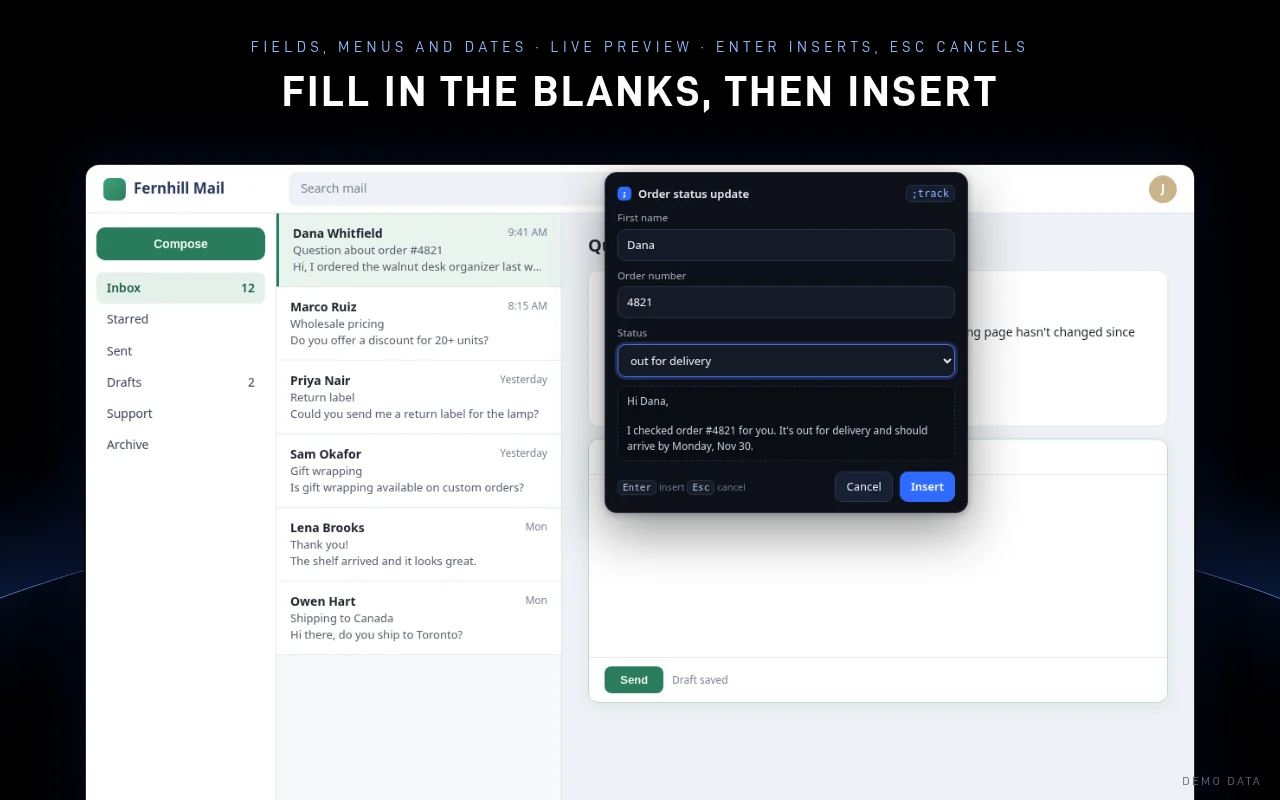
In Cuefill, add placeholders with the buttons above the editor: {field:First name} for a short answer, {textarea:Notes} for a few lines, and {choice:Status=on its way|out for delivery} for a menu. When you type the abbreviation, a small form opens with a live preview. Tab moves between fields, Enter inserts and Esc cancels and leaves your text as it was.
Add {cursor} where you want to keep typing, and the caret lands there after the text goes in.
Cuefill is free, has no snippet cap, needs no account and sends nothing anywhere.
Microsoft Edge Add-ons: coming soonFirefox: coming soonOpera: coming soon
Microsoft and Edge are trademarks of Microsoft Corporation. Firefox is a trademark of Mozilla. Opera is a trademark of Opera Norway AS. Not affiliated with or endorsed by them.
Questions
Can a field start with a default value?
Yes. Write {field:City=Paris} and the box starts filled in with Paris.
How many fields can one snippet have?
Cuefill doesn't set a limit, and there's no cap on how many times a day you use forms.
What happens if I press Esc?
The form closes and your abbreviation stays as you typed it, so nothing is lost.