How to copy colors from a website and export the palette
You want a site's exact colors, not a guess from a screenshot. Picking pixels gets you shades blended by anti-aliasing and shadows. Reading the CSS gets you the real values.
The free way: your browser's developer tools
- Right-click an element and choose Inspect.
- In Styles or Computed, look for color, background-color and border-color. Click the small swatch to switch between HEX, RGB and HSL, then copy the value.
- For a quick look at the whole page, open the CSS Overview panel (in the More tools menu) and run it. It lists the colors used on the page.
- Paste each value into your own file. There's no built-in way to export them all as variables.
The one-click way
Open Stylenab and switch to the Colors tab. Every color on the page is listed by how often it's used, and you can filter to text, backgrounds, borders, SVG or shadows. Press Show to see where a color is used. Then export the whole list as CSS variables, a Tailwind v4 theme, a Tailwind v3 config, SCSS, JSON or a GIMP palette, in HEX, RGB, HSL or OKLCH.
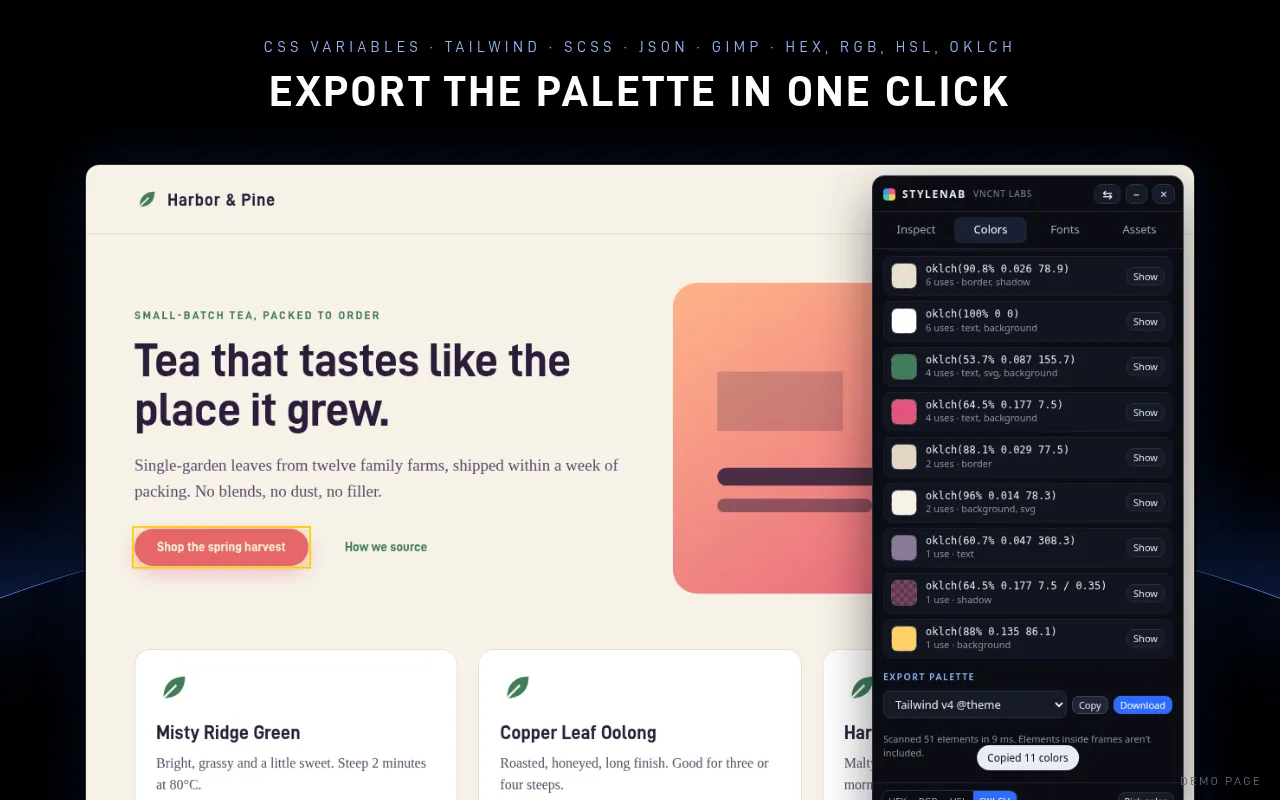
Stylenab is free, asks only for access to the tab you click it on, and sends nothing anywhere.
Get it on FirefoxMicrosoft Edge Add-ons: coming soon
Firefox is a trademark of Mozilla. Not affiliated with or endorsed by Mozilla.
Questions
Why do I get slightly different colors with a color picker?
Edges of text and shapes are smoothed, and shadows and transparency mix colors together. Reading the CSS gives you the value the designer set.
Can it check contrast?
Yes. Hover any text and Stylenab shows the contrast ratio against the background behind it, with a WCAG AA or AAA grade.
Is it OK to copy a site's colors?
Colors on their own are fine to use for reference. Copying a whole brand look, logo and name is a different matter.