How to save images and SVG icons from a website
Right-click and Save image works for plain images, but not for icons drawn as inline SVG, images set as CSS backgrounds, or favicons. Here's how to get those too.
The free way: your browser's developer tools
- For a regular image, right-click it and choose Save image as.
- For an inline SVG icon, right-click it, choose Inspect, find the <svg> element, then right-click it and choose Copy then Copy outerHTML. Paste into a file ending in .svg. If it uses <use>, you'll also need the symbol it points to.
- For a background image, inspect the element and look for background-image: url(...) in Styles. Open that address in a new tab and save it.
- Images that load as you scroll may not exist until you scroll to them.
The one-click way
Stylenab's Assets tab collects images, inline SVG icons, CSS backgrounds, favicons and the social share image in one grid. Copy an icon's SVG code (with any symbols it uses included), save files, or copy every image link at once.
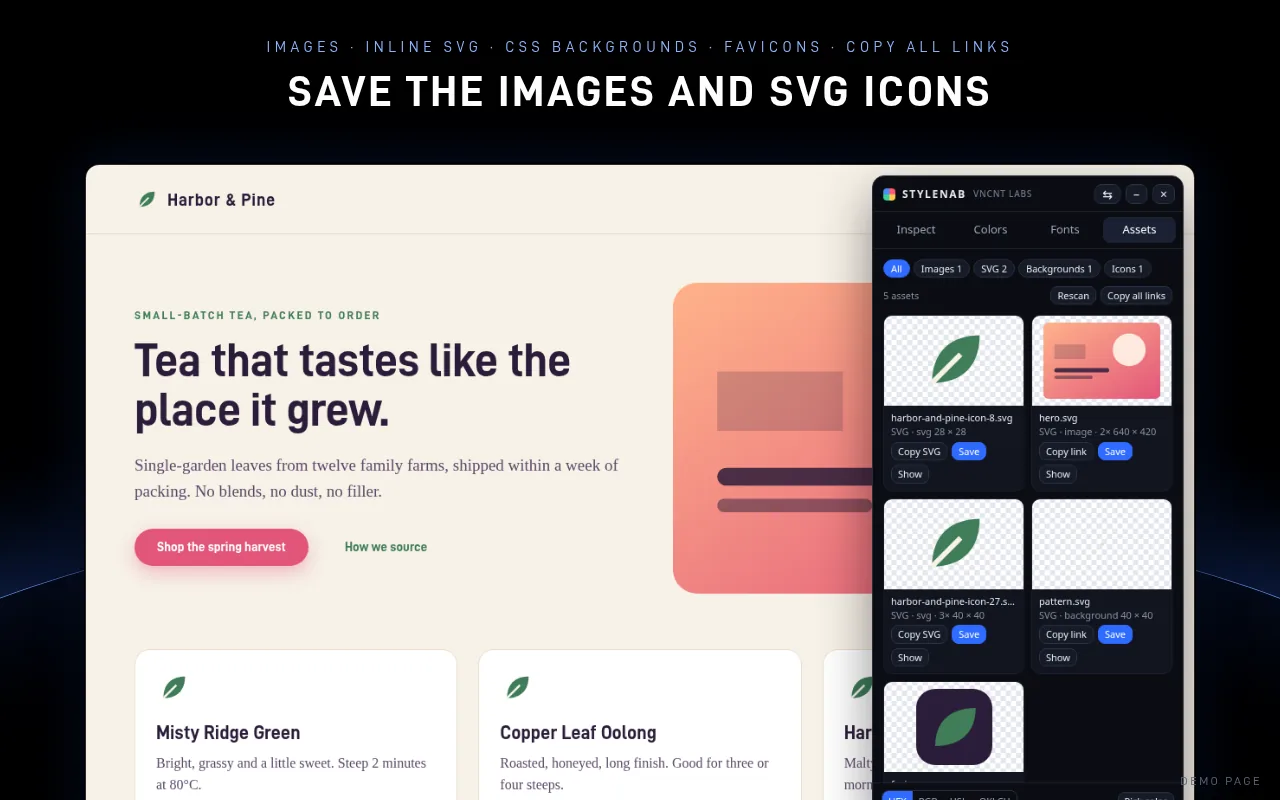
Stylenab is free, asks only for access to the tab you click it on, and sends nothing anywhere.
Get it on FirefoxMicrosoft Edge Add-ons: coming soon
Firefox is a trademark of Mozilla. Not affiliated with or endorsed by Mozilla.
Questions
Why does Save open a new tab sometimes?
Some sites don't allow their images to be fetched from another page. Stylenab then opens the image in a new tab, where you can save it normally.
Can I use the images I save?
Images and icons are usually copyrighted. Saving them for reference is common, but check the license before you publish them.
Does it find images that haven't loaded yet?
It finds what's on the page when you open it. Scroll first, then press Rescan, to include images that load as you scroll.